> For the complete documentation index, see [llms.txt](https://docs.balena.io/llms.txt). Markdown versions of documentation pages are available by appending `.md` to page URLs; this page is available as [Markdown](https://docs.balena.io/learn/getting-started/jetson-orin-nx-xavier-nx-devkit.md).
# Getting started with Nvidia Jetson Orin NX 16GB in Xavier NX Devkit NVME
In this guide, we will help you get started with balenaCloud by:
* Setting up your **Nvidia Jetson Orin NX 16GB in Xavier NX Devkit NVME** device and bringing it online on the balenaCloud dashboard.
* Deploying a *hello world* project on the device in your language of choice.
* Developing the sample project: making changes and testing them on the device in real-time.
Once you've completed this getting started guide to balena, you'll be equipped with the fundamentals needed to continue developing your application using balenaCloud and be on the path to deploying fleets of devices to production. If you are looking for definitions of certain terms, refer to the [glossary](/learn/more/glossary.md).
## What you'll need
* Your Nvidia Jetson Orin NX 16GB in Xavier NX Devkit NVME device you want to get started with. Check out all of our [supported devices](/reference/hardware/devices.md).
* A tool to flash the new operating system on the device. We recommend [Etcher](https://www.balena.io/etcher).
* A way to connect the device to the internet, either through wifi (if available) or ethernet cable.
* A method of reliably powering the device.
* A [balenaCloud account](https://dashboard.balena-cloud.com/signup). BalenaCloud is free for up to 10 devices and requires no payment method to sign up.
* Install [balena CLI](https://github.com/balena-io/balena-cli/blob/master/INSTALL.md) to develop & manage your device on balenaCloud.
## Create a fleet
A fleet is a group of devices that share the same [architecture](/reference/hardware/devices.md) and run the same code. Devices are added to fleets and can be moved between fleets at any time.
To create your first fleet, log into your [balenaCloud dashboard](https://dashboard.balena-cloud.com/) and click the **Create fleet** button.
Enter a fleet name, select the **Nvidia Jetson Orin NX 16GB in Xavier NX Devkit NVME** device type, and click **Create new fleet**:
You'll then be redirected to the summary of the newly created fleet, where you can add your first Nvidia Jetson Orin NX 16GB in Xavier NX Devkit NVME.
## Add a device and download OS
balenaCloud builds a custom balenaOS image configured for Nvidia Jetson Orin NX 16GB in Xavier NX Devkit NVME which allows the device to provision and join the new fleet you created automatically. Start by clicking **Add device** on the fleet summary. Your device type will be preselected here since you already chose it when creating the fleet. Other device types of the same [architecture](/reference/hardware/devices.md) can also be picked to join the fleet.
Select an OS type of *balenaOS*, and you will see a list of available balenaOS versions with the latest preselected. Choose a **Development** version of the OS. The production OS does not facilitate the development workflow we'll be using. Find out more about the [differences between Development and Production images](/reference/os/overview.md#development-vs-production-images).
Select the type of network connection you'll be using: *Ethernet Only* or *Wifi + Ethernet*. A network connection is required to allow the device to connect to balenaCloud. Selecting *Wifi + Ethernet* allows you to enter a *Wifi SSID* and *Wifi Passphrase* which is then built into the image.
Click the arrow by the **Flash** button. You'll see several options.
Pick the option that works best for you:
{% tabs %}
{% tab title="Flash" %}
If you have [Etcher](https://etcher.balena.io/) installed, you can just click the Flash button. This will automatically open Etcher with your image loaded. The contents of the image that gets loaded are the same as the contents of the image you would get from the **Download balenaOS** option. Once Etcher opens, proceed to [Provision device](#provision-device).
**This option is best for quickly flashing a device(s) in a single session. Once you close Etcher, the image will no longer be loaded in it.**
{% endtab %}
{% tab title="Download balenaOS" %}
This will download a zipped image file with a name like `balena-First-Fleet-jetson-orin-nx-xavier-nx-devkit-6.10.24-v17.4.2.img.zip`. The contents of this image file are the same as what Etcher would have received if you had chosen the **Flash**. The difference is that you could reuse this image file repeatedly without having to fill out the form again.
**This option is best for preparing an image for provisioning several devices. Even if you close Etcher, you can just load the same image again for as many devices as you need, and they will all be provisioned with the same basic information that you indicated in the form.**
{% endtab %}
{% tab title="Download configuration file only" %}
This only downloads a configuration file with details that you filled out in the form and information about the fleet. **This is for more complex workflows and we do not recommend it for getting started**.
You can read more about it [here](https://github.com/balena-io/docs/tree/main/pages/reference/os/configuration/README.md).
{% endtab %}
{% endtabs %}
Once you have chosen one of the options, the button should update to whichever option you have chosen. Click the button and proceed.
## Provision device
Next, we will flash the downloaded image onto the device. To do so, follow the following steps:
* For balenaOS versions v8.0.0 and newer, please ensure your device is running UEFI firmware version 39.2.0. Check and update the [firmware version](https://docs.balena.io/learn/develop/hardware/jetson-orin/jetson-orin-nx-xavier-nx-devkit/#checking-your-jetson-orins-uefi-firmware-version) before proceeding. For balenaOS versions lower than v8.0.0, please refer to the [Nvidia Jetson Orin NX 16GB in Xavier NX Devkit NVME legacy flashing](https://github.com/balena-os/jetson-flash?tab=readme-ov-file) guide.
* Insert the USB key to the host machine.
* Write the balenaOS file you downloaded to the USB key. We recommend using [Etcher](https://etcher.balena.io/).

* Wait for writing of balenaOS to complete.
* Remove the USB key from the host machine.
* Insert the freshly flashed USB key into the Nvidia Jetson Orin NX 16GB in Xavier NX Devkit NVME.
* **Warning!** This will also completely erase internal storage medium, so please make a backup first.
* Insert a NVME drive in the carrier board and power up the Nvidia Jetson Orin NX 16GB in Xavier NX Devkit NVME.
* Wait for the Nvidia Jetson Orin NX 16GB in Xavier NX Devkit NVME to finish flashing and shutdown. Please wait until power LED is off.
* Remove the USB key from the Nvidia Jetson Orin NX 16GB in Xavier NX Devkit NVME.
* Connect a display or debug UART cable and power up the Nvidia Jetson Orin NX 16GB in Xavier NX Devkit NVME. A progress bar should be displayed while the UEFI firmware is updated. IMPORTANT: Please do not interrupt this process by turning off power or rebooting the device. Do not ship any devices without ensuring the UEFI firmware has been updated during balenaOS provisioning. Once the firmware update completes, the Nvidia Jetson Orin NX 16GB in Xavier NX Devkit NVME will reset automatically and no other steps are necessary to boot the device.
When complete, after a minute or two the device should appear on your balenaCloud [dashboard](https://dashboard.balena-cloud.com/), and you should now be ready to deploy some code. If you are not able get the device to appear on the dashboard, then check out our [troubleshooting guide for Nvidia Jetson Orin NX 16GB in Xavier NX Devkit NVME](https://github.com/balena-io/docs/tree/main/faq/troubleshooting/jetson-orin-nx-xavier-nx-devkit/README.md) or try our [support channels](/learn/accounts/support-access.md).
## Install the balena CLI
Now that you have an `operational` device in your fleet, it's time to deploy some code. We will use the balena CLI for this. Follow the instructions below to install balenaCLI for the operating system available on your system. Skip the next part if you have balena CLI already installed.
{% tabs %}
{% tab title="OSX" %}
1. [Download the CLI installer](https://github.com/balena-io/balena-cli/releases/download/v25.2.7/balena-cli-v25.2.7-macOS-x64-installer.pkg).
2. Double click the downloaded file to run the installer and follow the installer's instructions.
3. To run balena CLI commands, open the Terminal app ([Terminal User guide](https://support.apple.com/en-gb/guide/terminal/apd5265185d-f365-44cb-8b09-71a064a42125/mac)).
{% endtab %}
{% tab title="Windows" %}
1. [Download the CLI installer](https://github.com/balena-io/balena-cli/releases/download/v25.2.7/balena-cli-v25.2.7-windows-x64-installer.exe).
2. Double click the downloaded file to run the installer and follow the installer's instructions.
3. To run balena CLI commands, open a command prompt: Click on the Windows Start Menu, type PowerShell, and then click on Windows PowerShell.
{% endtab %}
{% tab title="Linux" %}
1. [Download the standalone CLI](https://github.com/balena-io/balena-cli/releases/download/v25.2.7/balena-cli-v25.2.7-linux-x64-standalone.tar.gz).
2. Extract the contents of the tar.gz file to any folder you choose, for example `/home/james`. The extracted contents will include a `balena/bin` folder.
3. Add that folder (e.g. `/home/james/balena/bin`) to the PATH environment variable. Check this [StackOverflow](https://stackoverflow.com/questions/14637979/how-to-permanently-set-path-on-linux-unix) post for instructions. Close and re-open the terminal window so that the changes to PATH can take effect.
{% endtab %}
{% endtabs %}
After balena CLI is installed, login to your balena account using the `balena login` command on the terminal:
```shell
$ balena login
_ _
| |__ __ _ | | ____ _ __ __ _
| '_ \ / _` || | / __ \| '_ \ / _` |
| |_) | (_) || || ___/| | | || (_) |
|_.__/ \__,_||_| \____/|_| |_| \__,_|
Logging in to cloud.com
? How would you like to login? (Use arrow keys)
❯ Web authorization (recommended)
Credentials
Authentication token
I don't have a balena account!
```
You will be asked to choose an authentication method, choose *Web authorization* which will bring up a web browser window that allows you to login to your balenaCloud account. Click the **Authorize** button, and head back to the terminal after the login successful message appears.
## Create a release
After login, test the balena CLI by running the `balena fleet list` command, which should return information about the fleet you created in the previous step. Take a note of the fleet `NAME` as you'll need this in the next step to push the code to your device(s) in that fleet.
```shell
$ balena fleets
ID NAME SLUG DEVICE TYPE DEVICE COUNT ONLINE DEVICES
98264 First-Fleet balena CLI/first-fleet Nvidia Jetson Orin NX 16GB in Xavier NX Devkit NVME 0 0
```
{% tabs %}
{% tab title="Node.js" %}
A nice project to try is the [balena-nodejs-hello-world](https://github.com/balena-io-examples/balena-nodejs-hello-world) project. It's a Node.js web server that serves a static page on port 80. To get started, [download the project](https://github.com/balena-io-examples/balena-nodejs-hello-world/archive/master.zip) as a zipped file from GitHub, unzip it and open a terminal in the root of the extracted project directory.
{% endtab %}
{% tab title="Python" %}
A nice project to try is the [balena-python-hello-world](https://github.com/balena-io-examples/balena-python-hello-world) project. It's a Python web server that serves a static page on port 80. To get started, [download the project](https://github.com/balena-io-examples/balena-python-hello-world/archive/master.zip) as a zipped file from GitHub, unzip it and open a terminal in the root of the extracted project directory.
{% endtab %}
{% tab title="C++" %}
A nice project to try is the [balena-cpp-hello-world](https://github.com/balena-io-examples/balena-cpp-hello-world) project. It's a C++ web server that serves a static page on port 80. To get started, [download the project](https://github.com/balena-io-examples/balena-cpp-hello-world/archive/master.zip) as a zipped file from GitHub, unzip it and open a terminal in the root of the extracted project directory.
{% endtab %}
{% tab title="Rust" %}
A nice project to try is the [balena-rust-hello-world](https://github.com/balena-io-examples/balena-rust-hello-world) project. It's a Rust web server that serves a static page on port 80. To get started, [download the project](https://github.com/balena-io-examples/balena-rust-hello-world/archive/master.zip) as a zipped file from GitHub, unzip it and open a terminal in the root of the extracted project directory.
{% endtab %}
{% tab title="Go" %}
A nice project to try is the [balena-go-hello-world](https://github.com/balena-io-examples/balena-go-hello-world) project. It's a Go web server that serves a static page on port 80. To get started, [download the project](https://github.com/balena-io-examples/balena-go-hello-world/archive/master.zip) as a zipped file from GitHub, unzip it and open a terminal in the root of the extracted project directory.
{% endtab %}
{% endtabs %}
To create a release, use the `balena push First-Fleet` command replacing `First-Fleet` with the name of your fleet. Ensure you are working from the root of the extracted project directory.
```shell
$ balena push First-Fleet
```
This command pushes the code to the balena builders, where it will be compiled, built, turned into a release, and applied to every device in the fleet.
You'll know your code has been successfully compiled and built when our friendly unicorn mascot appears in your terminal:
```shell
[hello-world] Successfully built 51bd190f7530
[Info] Generating image deltas from release 8acfdc579f7cb0fe424d1b800588b6f5 (id: 2186018)
[Success] Successfully generated image deltas
[Info] Uploading images
[Success] Successfully uploaded images
[Info] Built on builder05
[Success] Release successfully created!
[Info] Release: c0c593803588a304c173124827d96b99 (id: 2186339)
[Info] ┌────────────────────┬────────────┬────────────┐
[Info] │ Service │ Image Size │ Build Time │
[Info] ├────────────────────┼────────────┼────────────┤
[Info] │ hello-world │ 190.04 MB │ 50 seconds │
[Info] └────────────────────┴────────────┴────────────┘
[Info] Build finished in 1 minutes, 4 seconds
\
\
\\
\\
>\/7
_.-(6' \
(=___._/` \
) \ |
/ / |
/ > /
j < _\
_.-' : ``.
\ r=._\ `.
<`\\_ \ .`-.
\ r-7 `-. ._ ' . `\
\`, `-.`7 7) )
\/ \| \' / `-._
|| .'
\\ (
>\ >
,.-' >.'
<.'_.''
<'
```
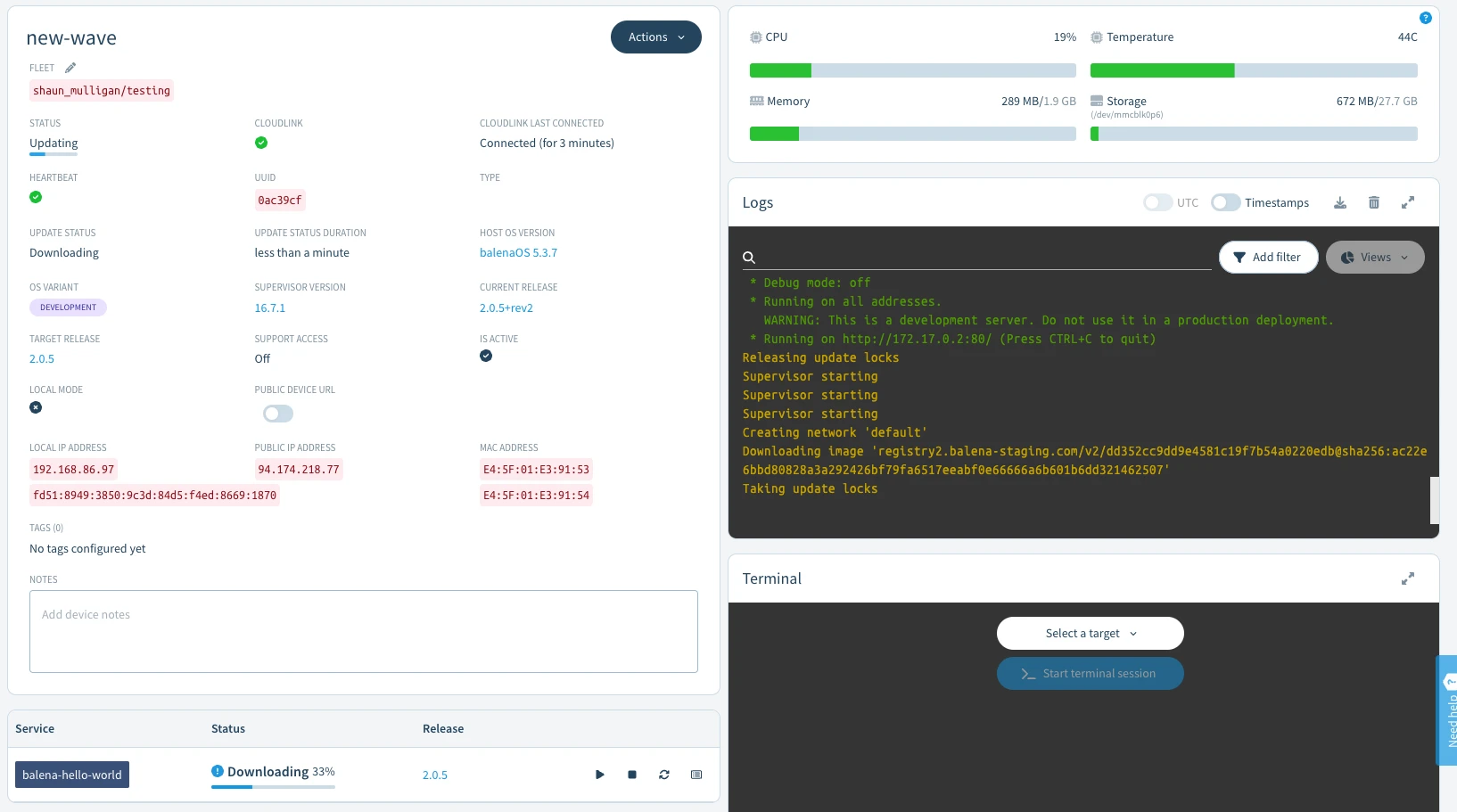
The release will then be downloaded and started by all the devices in the fleet. You can see the progress of the device code updates on the device dashboard:
After the download, you should now have a web server running on your device and see some logs on your dashboard.
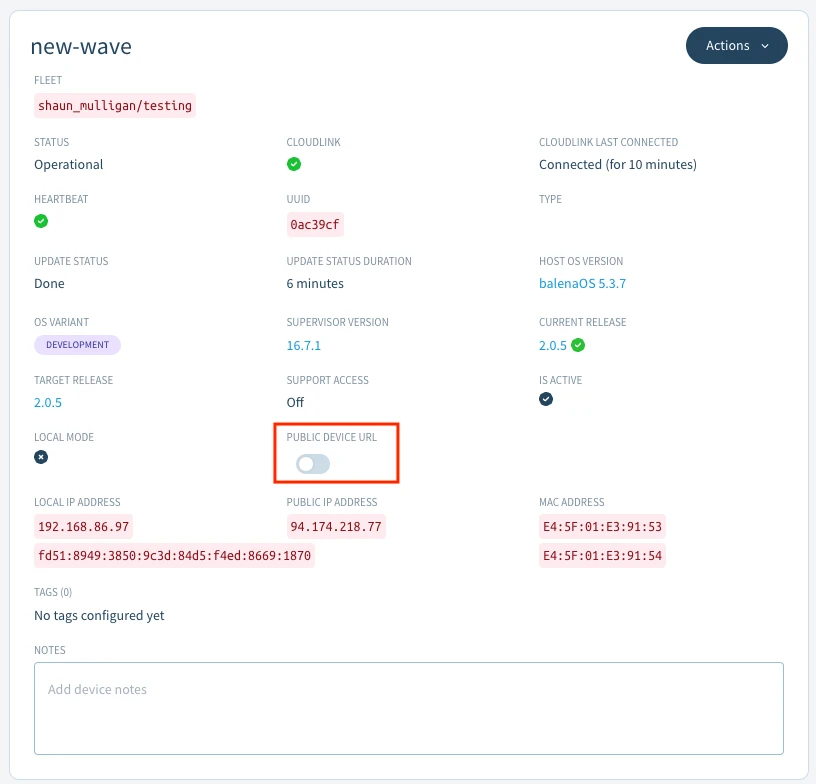
To give your device a public URL, click the *Public Device URL* toggle on the device dashboard. Public device URL allow you to serve content from the device to the world easily without configuration as long as the server is running on port 80.
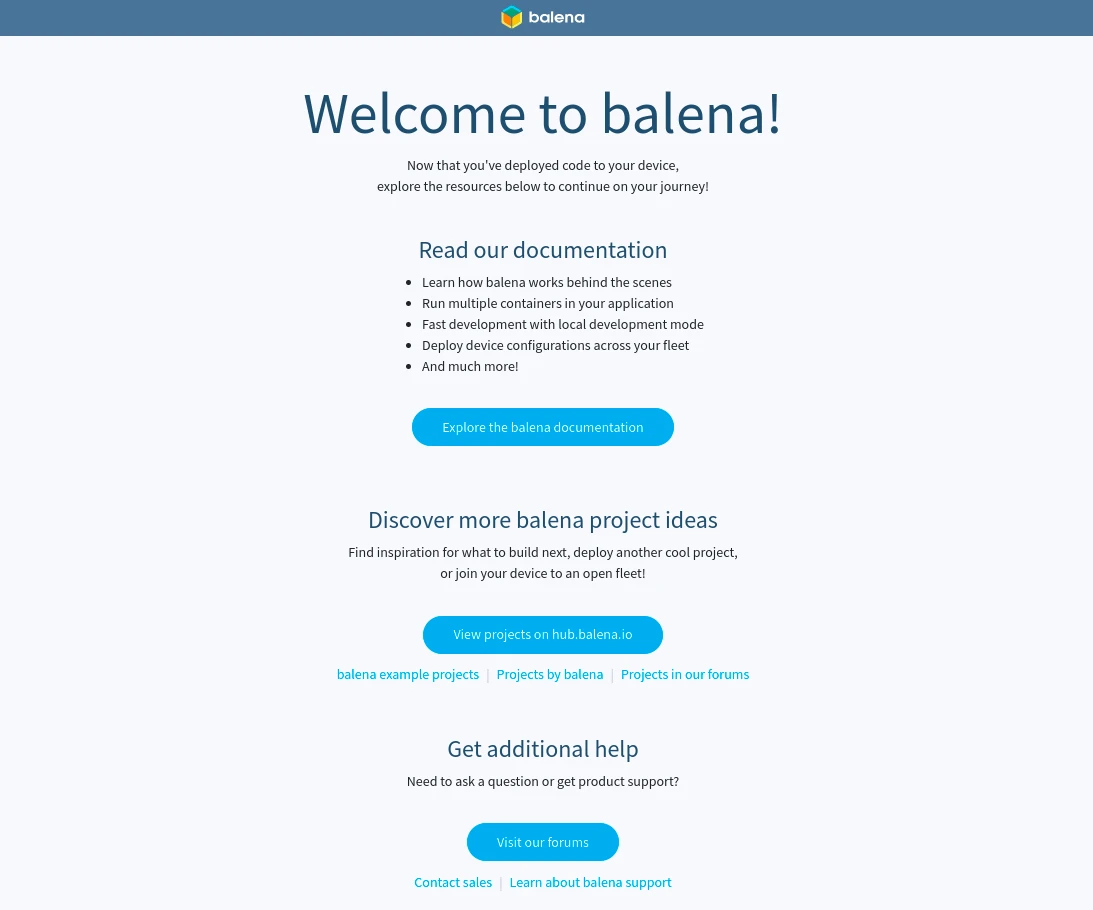
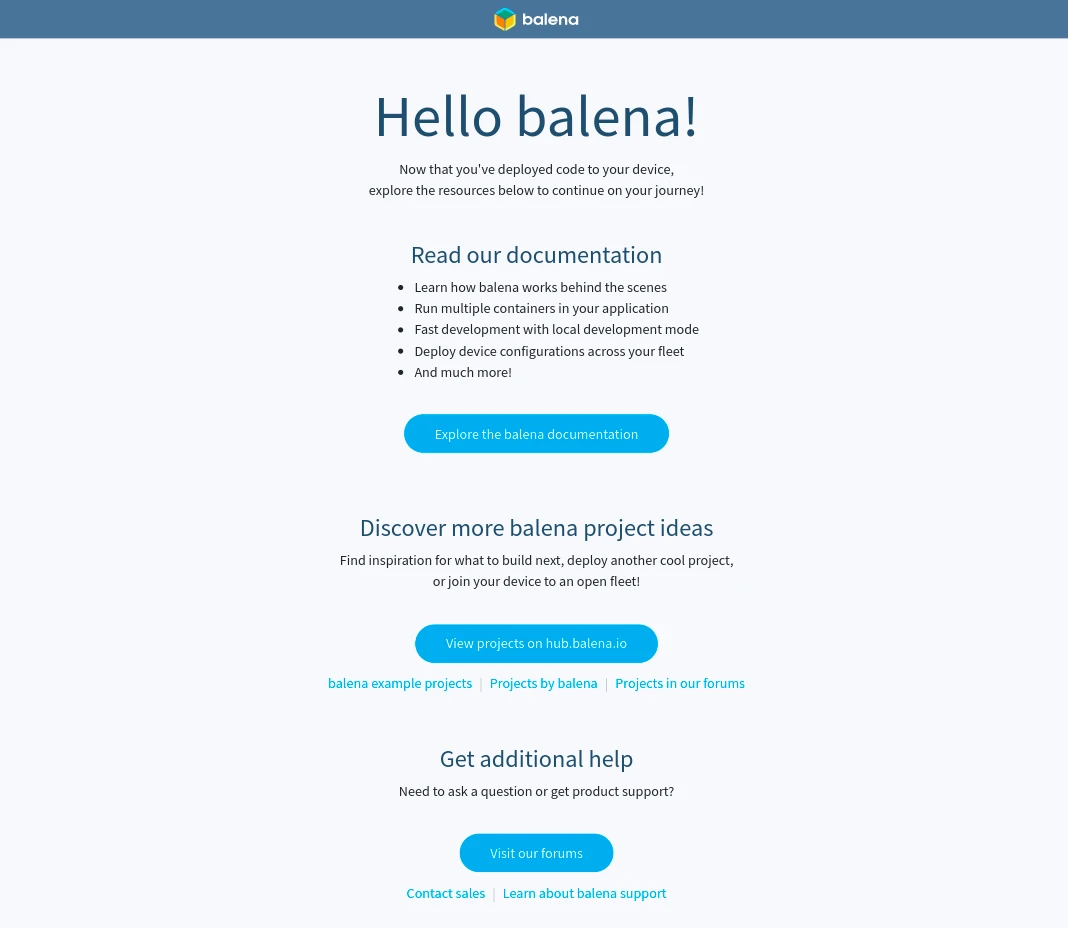
Follow the URL to view the welcome page with additional resources. Alternatively, you can point your browser to your device's local IP address to access the server running on your device. You can find the device's IP address on the device dashboard page. This is what you should be seeing.
## Developing your project
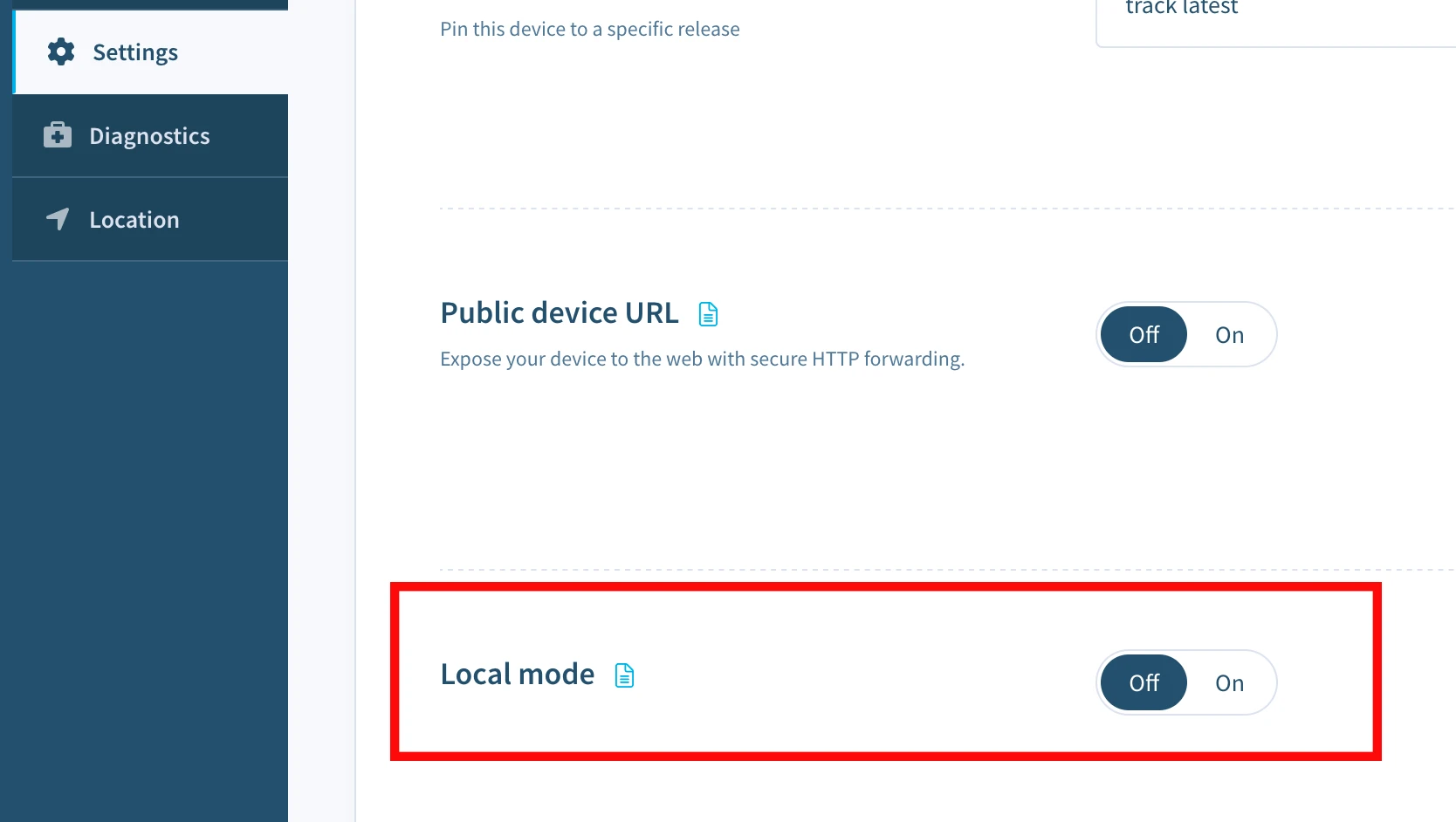
Now, let's try making some changes to this project and testing them right on the device. The project can be modified and pushed again using the same method as above, but since we are using a development version of the OS, we can enable *Local mode* and push directly to the device for a faster development cycle.
Activate local mode on the device via the dashboard.
Once enabled, you can now use `balena push` again, but this time we will push directly to the local IP address of the device obtained via the dashboard.
```shell
$ balena push 10.19.0.153
```
The same build process as before is carried out, but this time instead of using the balena builders, the build takes place locally on the device itself.
```shell
[Info] Streaming device logs...
[Live] Watching for file changes...
[Live] Waiting for device state to settle...
[Logs] [8/26/2021, 11:58:18 AM] Creating network 'default'
[Logs] [8/26/2021, 11:58:19 AM] Installing service 'hello-world sha256:...'
[Logs] [8/26/2021, 11:58:20 AM] Installed service 'hello-world sha256:...'
[Logs] [8/26/2021, 11:58:20 AM] Starting service 'hello-world sha256:...'
[Logs] [8/26/2021, 11:58:23 AM] Started service 'hello-world sha256:...'
[Logs] [8/26/2021, 11:58:24 AM] [hello-world] Starting server on port 80
[Live] Device state settled
```
The balena CLI will now watch for changes to all the files within the project, and automatically push changes to the device when detected. Let's try making a change to title of our balena welcome page. Navigate to the `index.html` file present in the `static` directory of the project. Open the file and change the title from `Welcome to balena!` to `Hello balena!` and save the file. After saving the changes, you can observe balena CLI automatically start rebuilding only the parts of the Dockerfile that has been changed.
```shell
[Live] Detected changes for container hello-world, updating...
...
[Live] [hello-world] Restarting service...
[Logs] [8/26/2021, 11:59:01 AM, 2:42:32 AM] Service exited 'hello-world sha256:...'
[Logs] [8/26/2021, 11:59:04 AM, 2:42:35 AM] Restarting service 'hello-world sha256:...'
[Logs] [8/26/2021, 11:59:05 AM, 2:42:36 AM] [hello-world] Starting server on port 80
```
When the rebuild is complete, take a look at the public device URL again to see your changes. The welcome page should have been updated with the new title.
## Next steps
Once you've finished making your changes, disable local mode and the device will revert back to running the latest release that's on your fleet. To update your fleet with the latest changes you've just worked on, use `balena push ` once more to create a new release with those changes.
When it's finished building the device(s) will update as before. Remember anything pushed to the fleet in this way can be applied to 10+ or 1000+ devices with no extra effort! To continue learning, explore parts of the guide in more detail:
* Learn more about [local mode](/learn/develop/local-mode.md), which allows you to build and sync code to your device locally for rapid development.
* Develop an application with [multiple containers](/learn/develop/multicontainer.md) to provide a more modular approach to fleet management.
* Manage your device fleet with the use of [configuration](/learn/manage/configuration.md), [environment](/learn/manage/variables.md), and [service variables](/learn/manage/variables.md).
* Find out more about the [balena CLI](https://github.com/balena-io/docs/tree/main/pages/reference/balena-cli.md) and the functionality it offers.
* Visit our blog to find step-by-step tutorials for some [classic balena projects](https://blog.balena.io/tags/project).
* To publish what you will build or have already built, head over to [balenaHub](https://hub.balena.io/).
* If you find yourself stuck or confused, help is just a [click away](https://www.balena.io/support).
**Enjoy balenafying all the things!**
---
# Agent Instructions
This documentation is published with GitBook. GitBook is the documentation platform designed so that both humans and AI agents can read, navigate, and reason over technical content effectively. Learn more at gitbook.com.
## Querying This Documentation
If you need additional information that is not directly available in this page, you can query the documentation by asking a question.
Perform an HTTP GET request on the following URL with the `ask` and `goal` query parameters:
```
GET https://docs.balena.io/learn/getting-started/jetson-orin-nx-xavier-nx-devkit.md?ask=&goal=
```
`ask` is the immediate question: it should be specific, self-contained, and written in natural language.
`goal` is what the user is ultimately trying to achieve, the reason they need the answer. Sharing it helps GitBook give you a better, more relevant answer. A goal is most helpful when it describes the outcome the user wants rather than restating the question. For example, with `ask=how do I create an API token`, a goal like `automate deployments from our CI pipeline` lets GitBook tailor the answer to that use case.
The response will contain a direct answer to the question and relevant excerpts and sources from the documentation.
Use this mechanism when the answer is not explicitly present in the current page, you need clarification or additional context, or you want to retrieve related documentation sections.