> For the complete documentation index, see [llms.txt](https://docs.balena.io/llms.txt). Markdown versions of documentation pages are available by appending `.md` to page URLs; this page is available as [Markdown](https://docs.balena.io/learn/develop/blocks.md).
# Develop with blocks
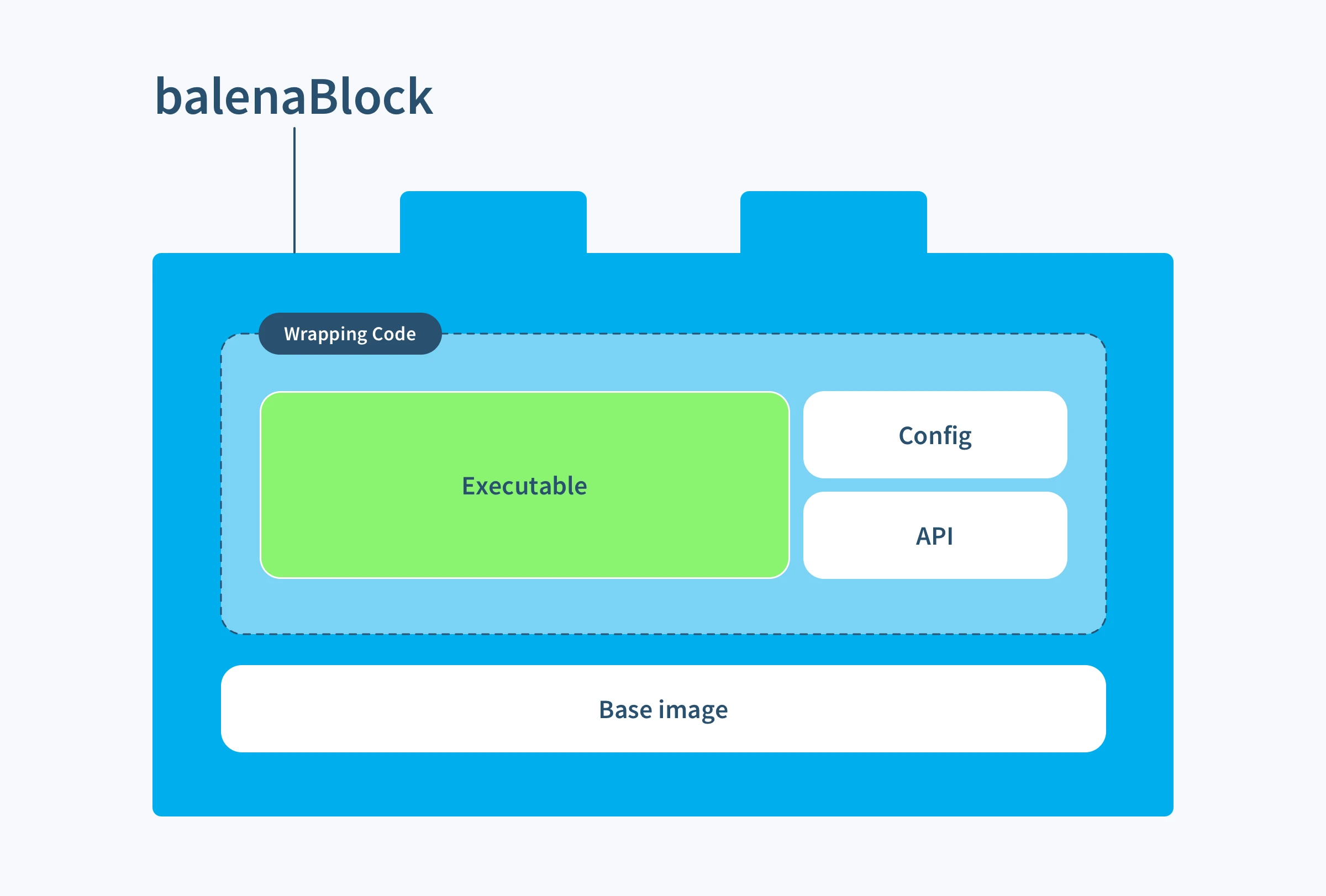
A block is a container image that can be added to a multicontainer fleet in order to provide specific functionality. Blocks are intended to reduce the friction of app development by making it easier to re-use functionality, much like software packages.
Similar to how software developers don't want to keep rewriting common functions, IOT developers don't want to keep creating containers for common tasks, such as handling Bluetooth connections or interacting with attached displays. Blocks provide solutions to common IoT application requirements, which developers can re-use to enable their fleet.
For example, getting a browser to run well in a container is a tedious task. Hence, why not use the [browser block](https://github.com/balenablocks/browser) to get things up and running faster..
## Getting Started with blocks
Since blocks are container images, they can be added to a multicontainer fleet. To use a block in your fleet, add the block's image as a new service in the `services` section of your app's `docker-compose.yml` file. This is similar to how we would build [multicontainer fleets](https://docs.balena.io/learn/develop/pages/CORva05iOMsT8cTRP8aC#docker-compose.yml-file).
Here's an example of using the [browser block](https://github.com/balenablocks/browser) in a sample multicontainer fleet already running 2 services.
```yaml
version: '2'
services:
# Browser block service added to the multicontainer fleet
browser:
image: bh.cr/balenablocks/browser-aarch64
privileged: true
network_mode: host
# Existing services in the multicontainer fleet
balena-node-hello-world:
build: ./balena-node-hello-world
restart: always
depends_on:
- browser
ports:
- '80'
importantBananaDb:
image: importantBanana/db:latest
ports:
- '8080'
environment:
DB_ROOT_PASSWORD: 'potassium'
RUN_MODE: 'super-secure'
```
Each block will have their own set of [docker-compose fields](/reference/supervisor/docker-compose.md) which are required to configure the container they run within. Do take care of syntax and conflicts in the docker-compose.yml file when composing and deploying your multicontainer configuration.
More resources:
1. Blog on [Introduction to blocks](https://www.balena.io/blog/introducing-balenablocks-jumpstart-your-iot-app-development/).
2. Check out our guide on [how to compose multicontainer fleets](https://www.balena.io/blog/two-projects-one-device-turn-your-raspberry-pi-into-a-multitool/) for more details.
3. Video tutorial on [IoT Happy Hour](https://youtu.be/Mllay6Z2-qQ?t=1440) about using balenaBlocks and building an [environmental sensor app](https://github.com/balenalabs-incubator/ruuvitag) using sensor, connector, and dashboard block.
## Creating your own block
Since blocks are container images, the process to create them is very similar to creating any other container. To learn more about what makes a good candidate for a block, refer to this [blog post](https://www.balena.io/blog/how-to-make-your-own-balenablocks-simple-drop-in-edge-app-functionality/).
In order to create your own block, the code needs to be in a GitHub repository. It has to [include a balena.yml file](https://docs.balena.io/learn/develop/pages/s7Pxw0dDwcjBAKYb253o#balena.yml-configuration-file) in the root directory of the project. Here's a balena.yml file of the [browser block](https://github.com/balenablocks/browser/) for reference:
```yml
name: browser
description: >-
a hardware accelerated web browser to present internal and external URLs on a
connected display
version: 2.3.2
type: sw.block
assets:
repository:
type: blob.asset
data:
url: 'https://github.com/balenablocks/browser'
logo:
type: blob.asset
data:
url: 'https://raw.githubusercontent.com/balenablocks/browser/master/logo.png'
data:
defaultDeviceType: raspberrypi3
supportedDeviceTypes:
- raspberrypi4-64
- fincm3
- raspberrypi3
- raspberrypi3-64
- raspberrypi400-64
- intel-nuc
- genericx86-64-ext
```
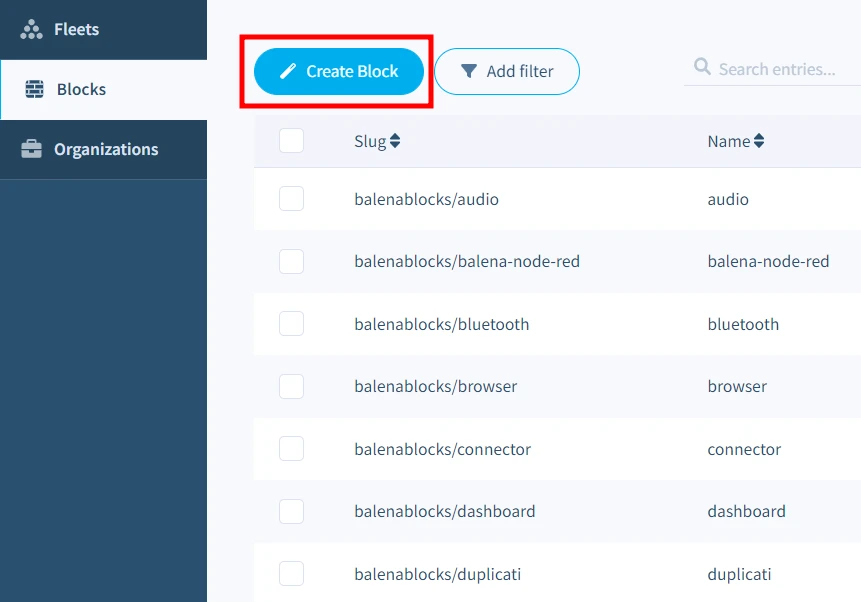
Next, navigate to the `Blocks` tab in the sidebar and click the `Create block` button in the balenaCloud dashboard.
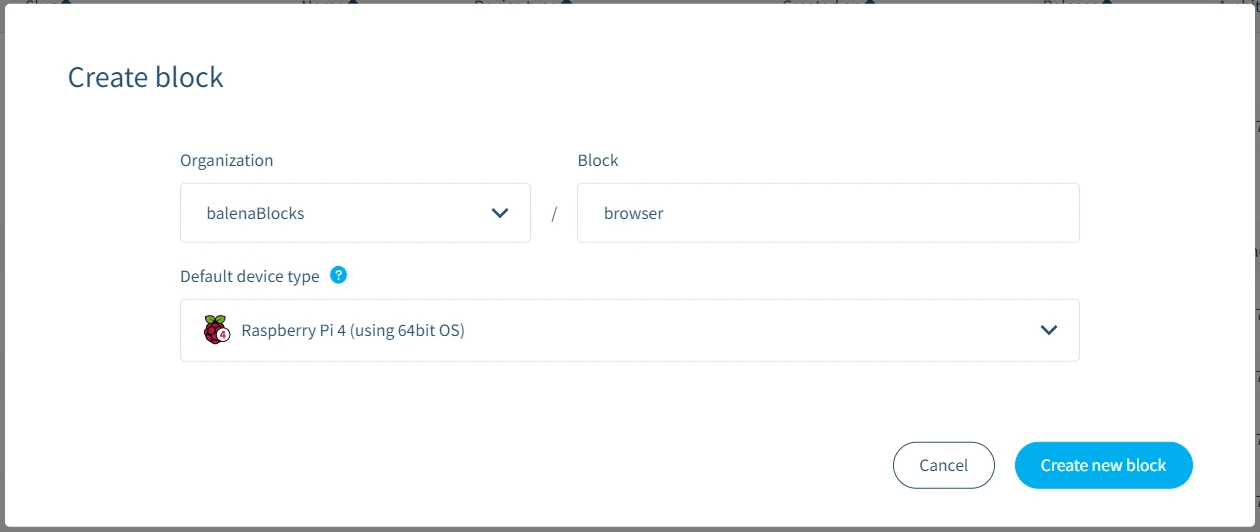
Fill the details for your block in the modal, and click `Create new block` button to create your block.
Next, we have to [push a new release](/learn/deploy/deployment.md#balena-push) from your project to your newly created block on balenaCloud. If you are new to this, then follow the [Getting Started](/learn/getting-started.md) guide. After the release has been created, your block is ready. You can manage, modify and iterate further on your block from the balenaCloud dashboard.
## Release management for blocks
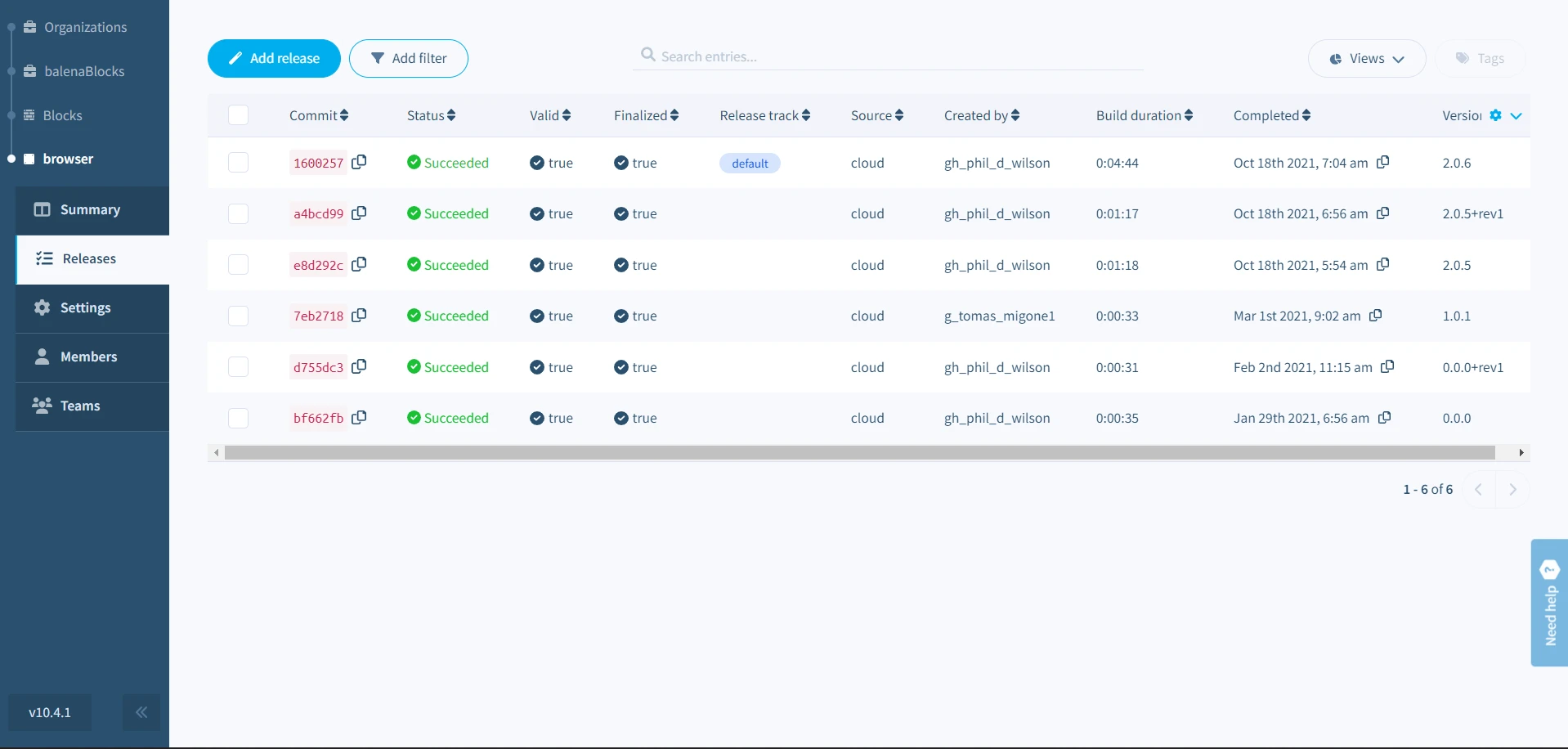
To deploy new releases of your block, you can use the [balena-push](/learn/deploy/deployment.md#balena-push) command using the [balenaCLI](https://github.com/balena-io/balena-cli). The `Releases` tab in the sidebar will show the list of all releases of your block.
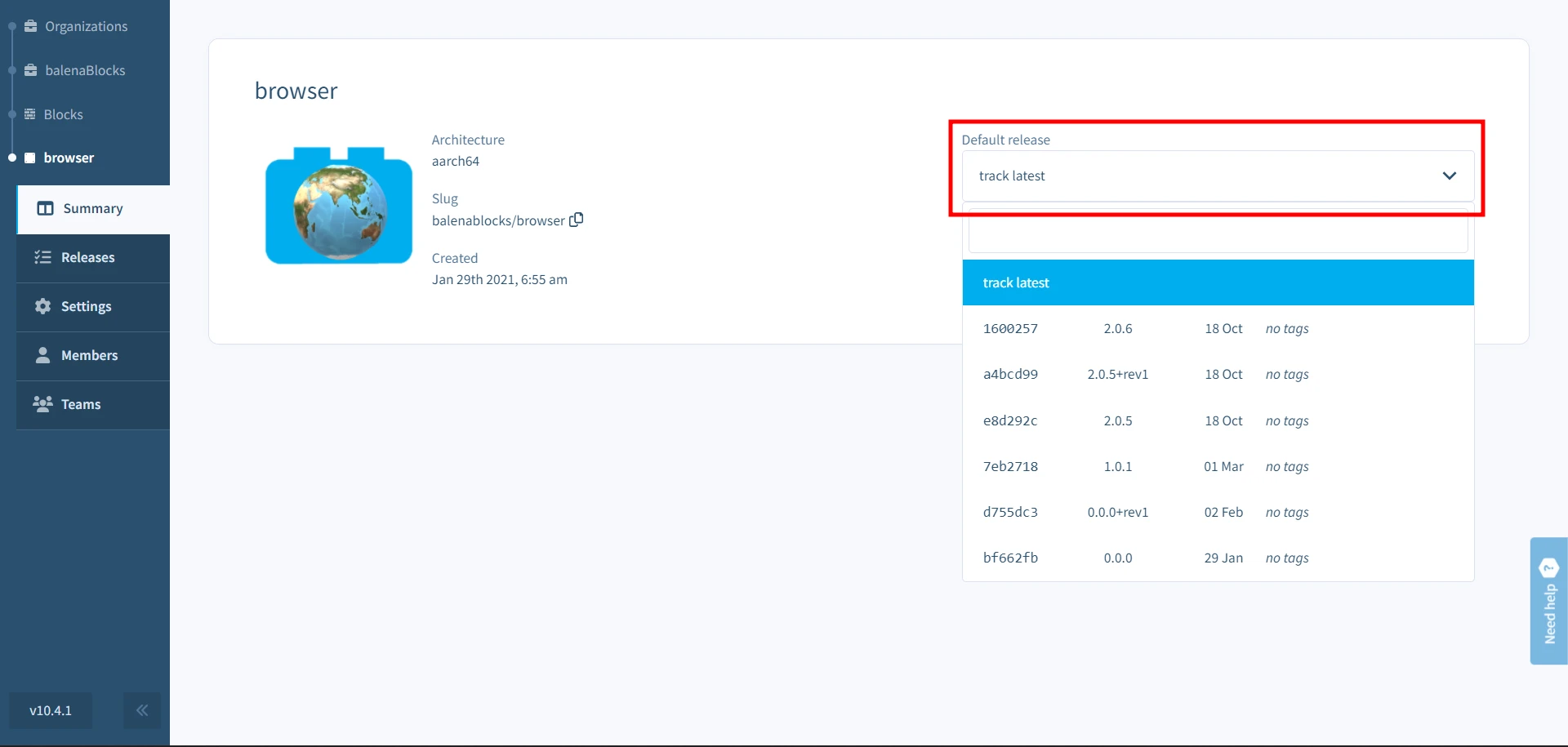
By default, the block is set to `track latest`, which means that new releases are immediately tagged as the default release for the block. Expanding this *Default release* dropdown menu displays all successful releases for the block, and you can select a specific release to pin the block to. When a particular release is selected, that release will be tagged as the default release of your block. After pinning to a specific release, releases will not be deployed until the *Default release* is updated to a newer release or it's set back to `track latest`.
## Making your block public
When a block is created on balenaCloud, it won't automatically be visible on balenaHub. When the block's visibility is toggled to `public`, it will get listed in the [Blocks section](https://hub.balena.io/blocks) of balenaHub. Blocks aren't joinable like fleets or forkable like projects. Instead, the balenaHub page would provide the container image reference for the block, and instructions on how to deploy and use the block in your own fleet.
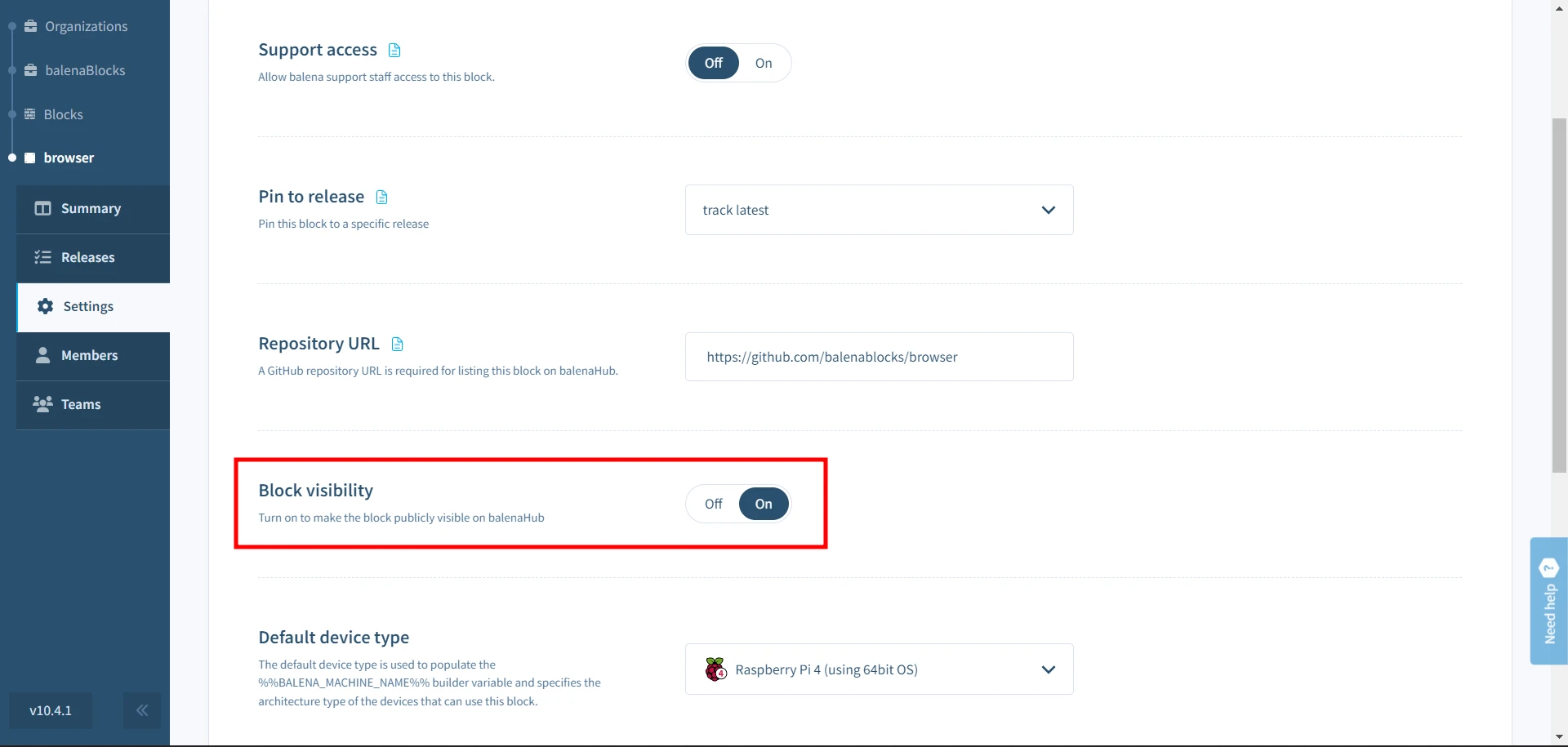
When blocks are private, you can iterate, test and build more functionality before making it available to the world. When you are ready to release, head to the `Settings` tab in the sidebar and add your block's GitHub repository to the `Repository URL` section. Next, toggle the `Block visibility` button to `on` for your block to be visible on balenaHub. You’re free to toggle the visibility on and off as necessary at any time.
This would lead to your block being available on [balenaHub](https://hub.balena.io/blocks) for folks to use and build upon as soon as your submission has been marked as public. BalenaHub is the ever-growing library of blocks, projects and fleets contributed by the community.
## Using your block in other projects
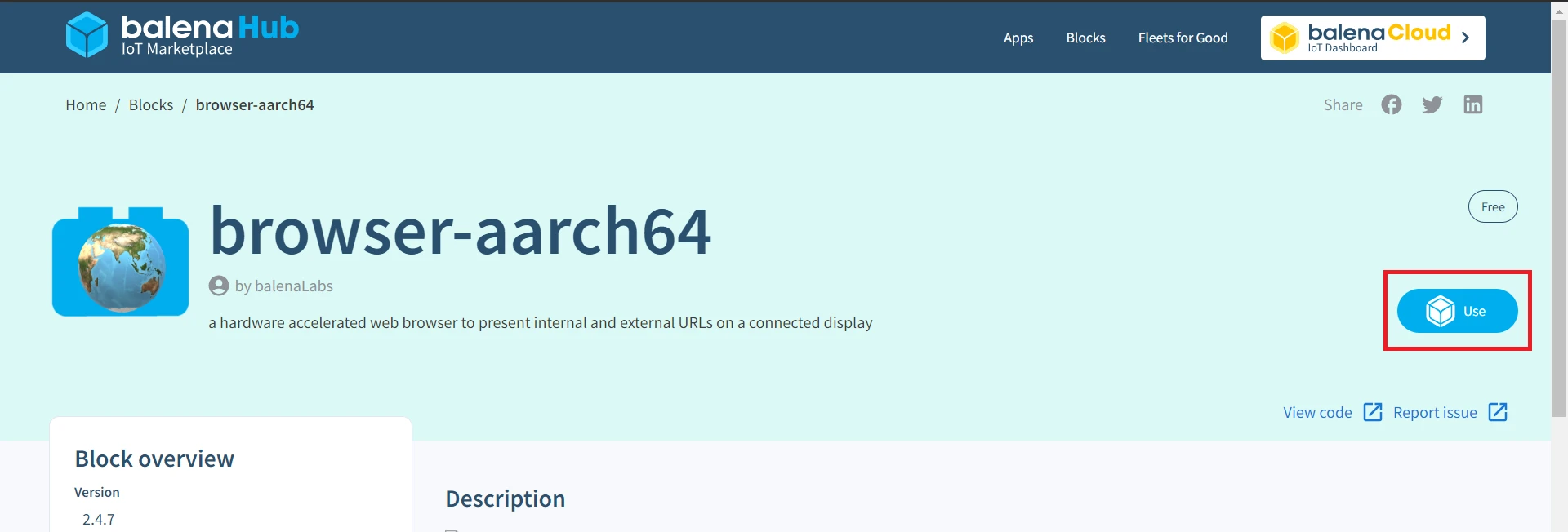
The URL to pull your block image (the *image reference*) is available in balenaHub by clicking the `Use` button.
This image reference can be used in a Dockerfile or docker-compose file to pull the *default release* image of your block.
Here's how to pull a specific release version given several available releases in the dashboard.
```yaml
services:
# Browser block service added to the multicontainer fleet
browser:
image: bh.cr/balenablocks/browser-aarch64/2.3.8
privileged: true
network_mode: host
```
{% hint style="info" icon="message-exclamation" %}
Note the forward slash `/` instead of the colon `:` syntax when specifying the version in the URL. [Learn more](https://github.com/balena-io/open-balena-registry-proxy#usage).
{% endhint %}
Specifying a revision via `+rev_` is not supported in image URLs as the plus sign is considered a special character. Instead, we will default to pulling the latest revision when a release version is provided.
So if there are multiple revisions of a release, for example `2.3.8`, `2.3.8+rev1`, and `2.3.8+rev2`, specifying `2.3.8` in the image reference will result in `2.3.8+rev2` being pulled.
During development you may want to pull a draft release for testing. Since draft releases are not included in the latest release track, you must specify the whole version string including the build stamp.
```yaml
services:
# Browser block service added to the multicontainer fleet
browser:
image: bh.cr/balenablocks/browser-aarch64/2.4.1-1648554962021
privileged: true
network_mode: host
```
You can also refer to a release by its build commit by copying the commit hash from the first column of the releases dashboard.
```yaml
services:
# Browser block service added to the multi-container fleet
browser:
image: bh.cr/balenablocks/browser-aarch64/11e1ee23d7ddf6ab6da99bac26c9d274
privileged: true
network_mode: host
```
Having the image reference available on balenaHub block page makes it easy to develop with blocks.
---
# Agent Instructions
This documentation is published with GitBook. GitBook is the documentation platform designed so that both humans and AI agents can read, navigate, and reason over technical content effectively. Learn more at gitbook.com.
## Querying This Documentation
If you need additional information that is not directly available in this page, you can query the documentation dynamically by asking a question.
Perform an HTTP GET request on the current page URL with the `ask` query parameter, and the optional `goal` query parameter:
```
GET https://docs.balena.io/learn/develop/blocks.md?ask=&goal=
```
`ask` is the immediate question: it should be specific, self-contained, and written in natural language.
`goal` is optional and describes the broader end goal you are ultimately trying to accomplish on behalf of the user. GitBook uses it to tailor the answer towards what is most useful for that goal.
The response will contain a direct answer to the question and relevant excerpts and sources from the documentation.
Use this mechanism when the answer is not explicitly present in the current page, you need clarification or additional context, or you want to retrieve related documentation sections.